How to place your first MyCNBox order
Follow the order from the seller link to the warehouse and your doorstep. Pick the walkthrough that matches the device you’re using.
Watch the MyCNBox guide
See the ordering flow in the official player. Checkout screens and promotion banners in the recording are examples.
Desktop guide
Eight steps from listing to tracking. Official desktop article
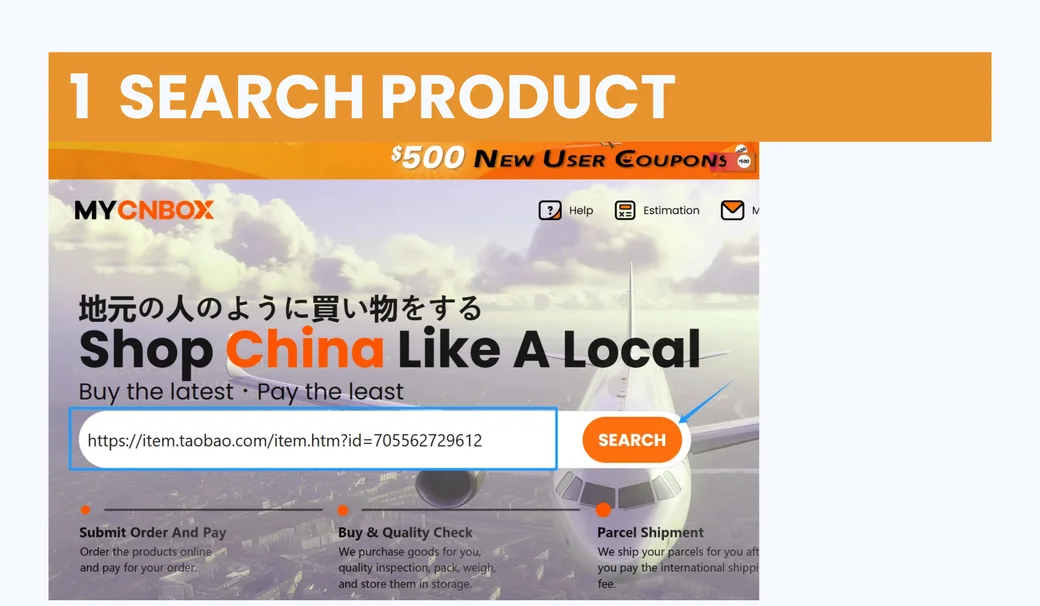
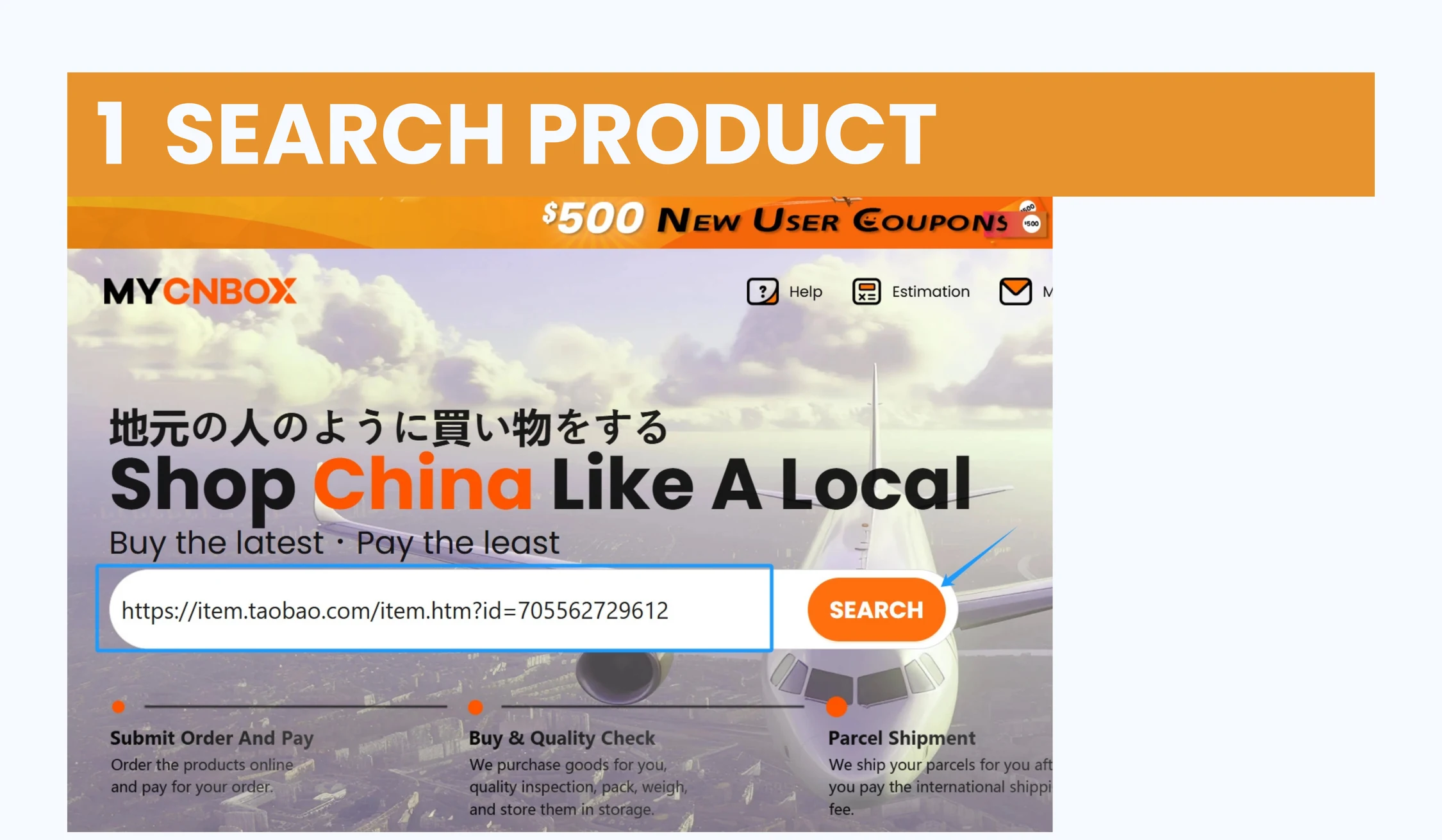
Paste the seller link
Open a find, copy the actual product URL, then paste it into the search field at MyCNBox. Open the resulting item page and check that the seller and product match the listing.
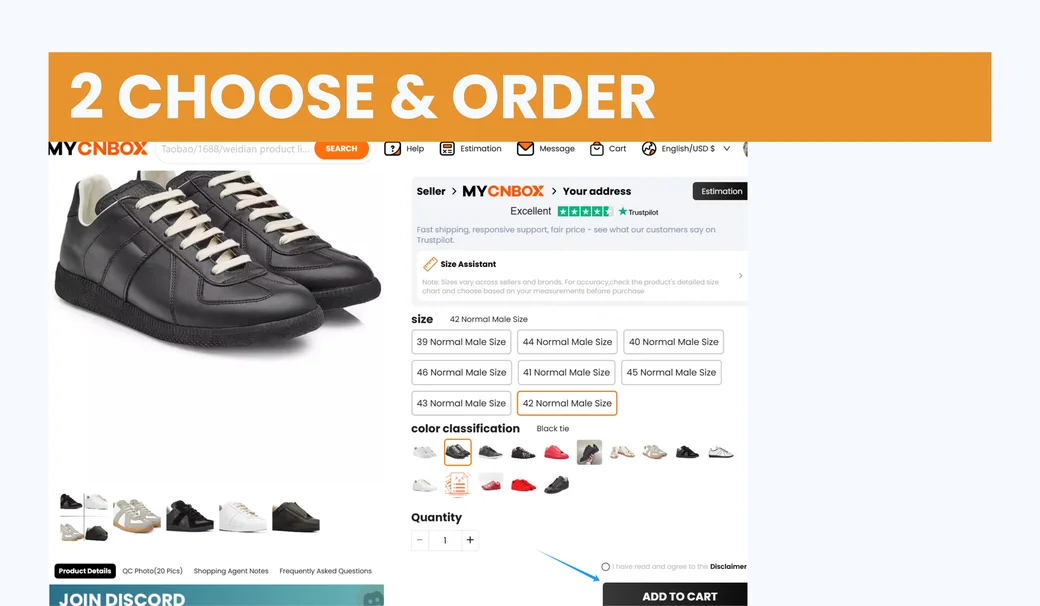
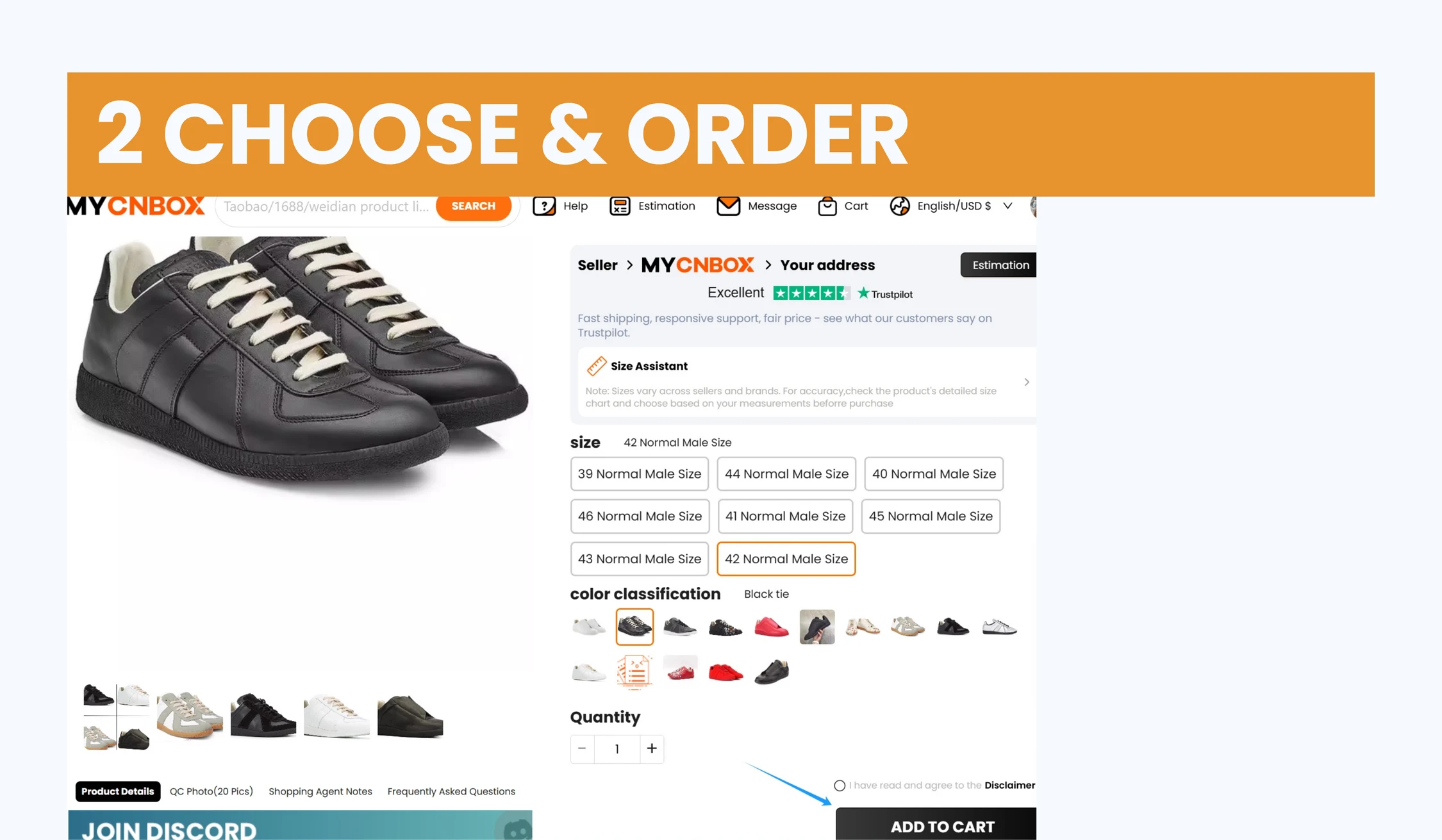
MyCNBox guide screenshot · select to enlarge Choose the exact variant
Match the selected size, colour and quantity to the seller listing. Add any custom instructions in the remark field before adding the item to your cart.
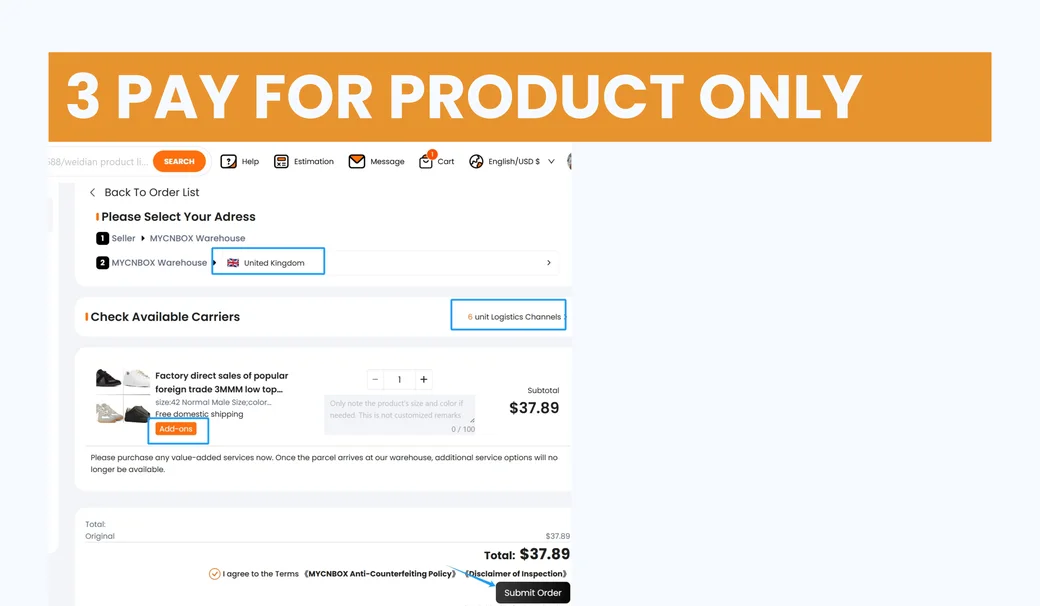
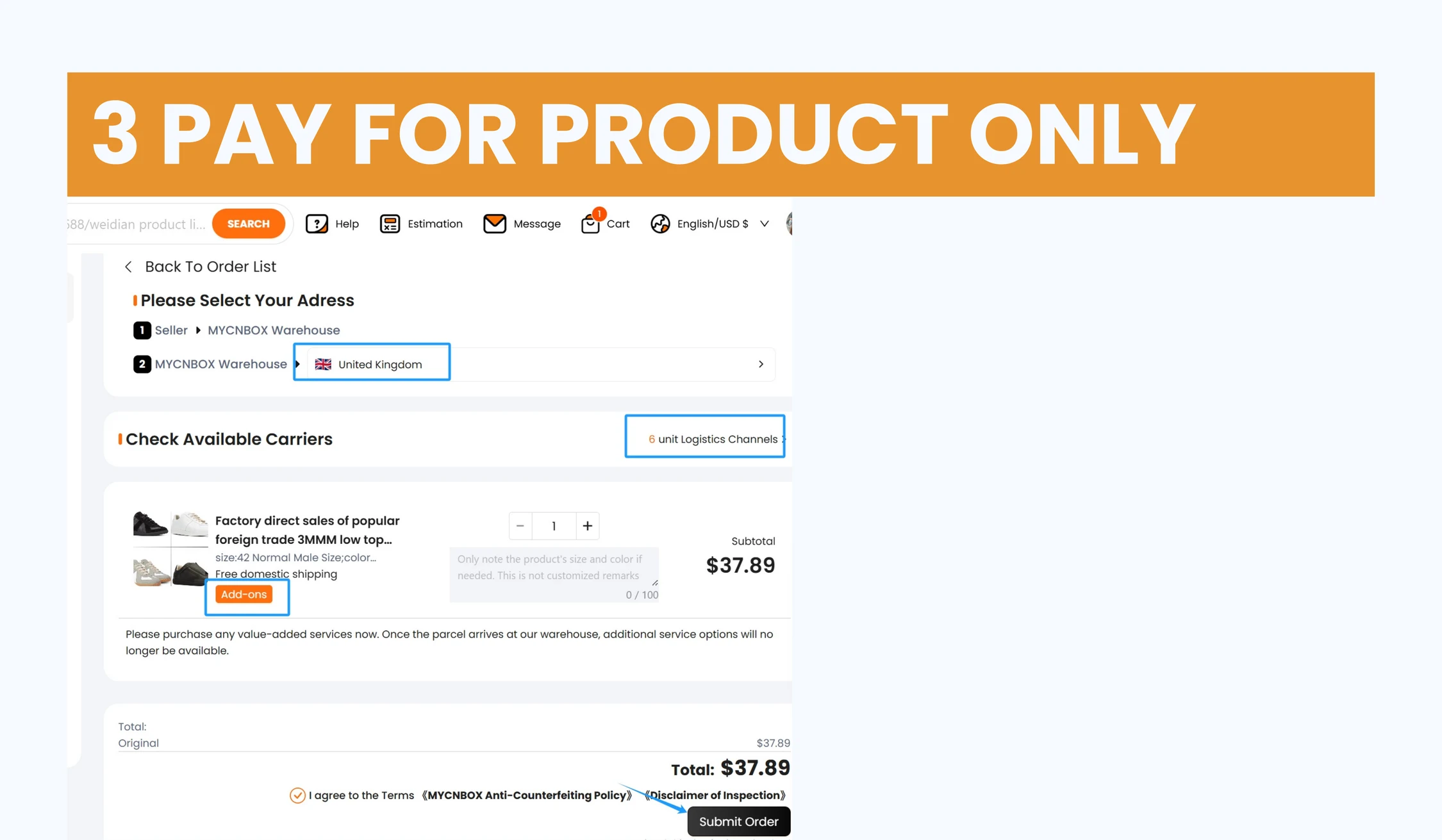
MyCNBox guide screenshot · select to enlarge Pay for the item order
At the first checkout, review the goods total and any domestic delivery shown. International shipping is calculated separately once you prepare a parcel.
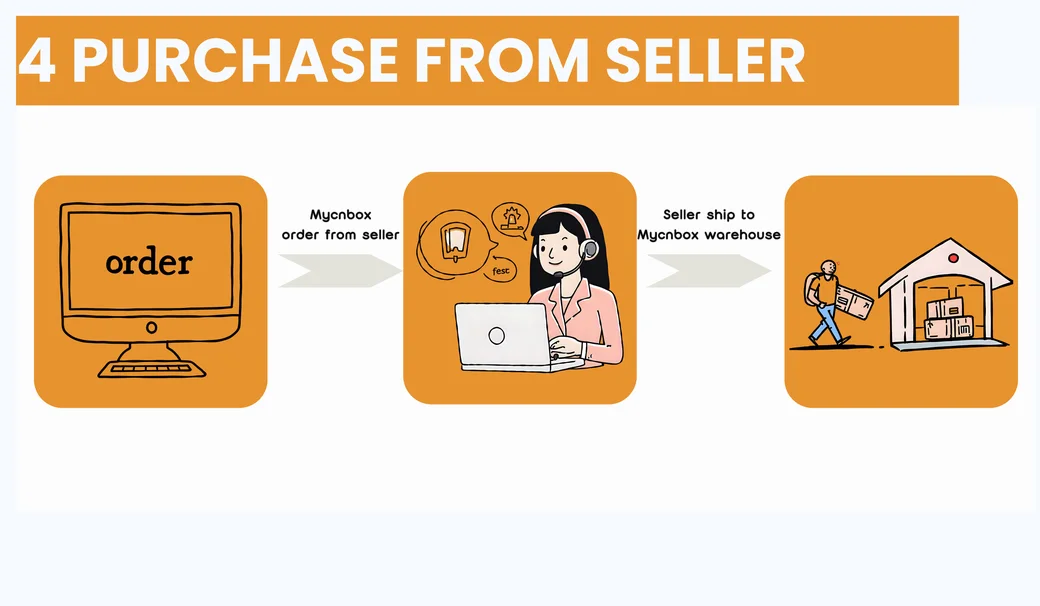
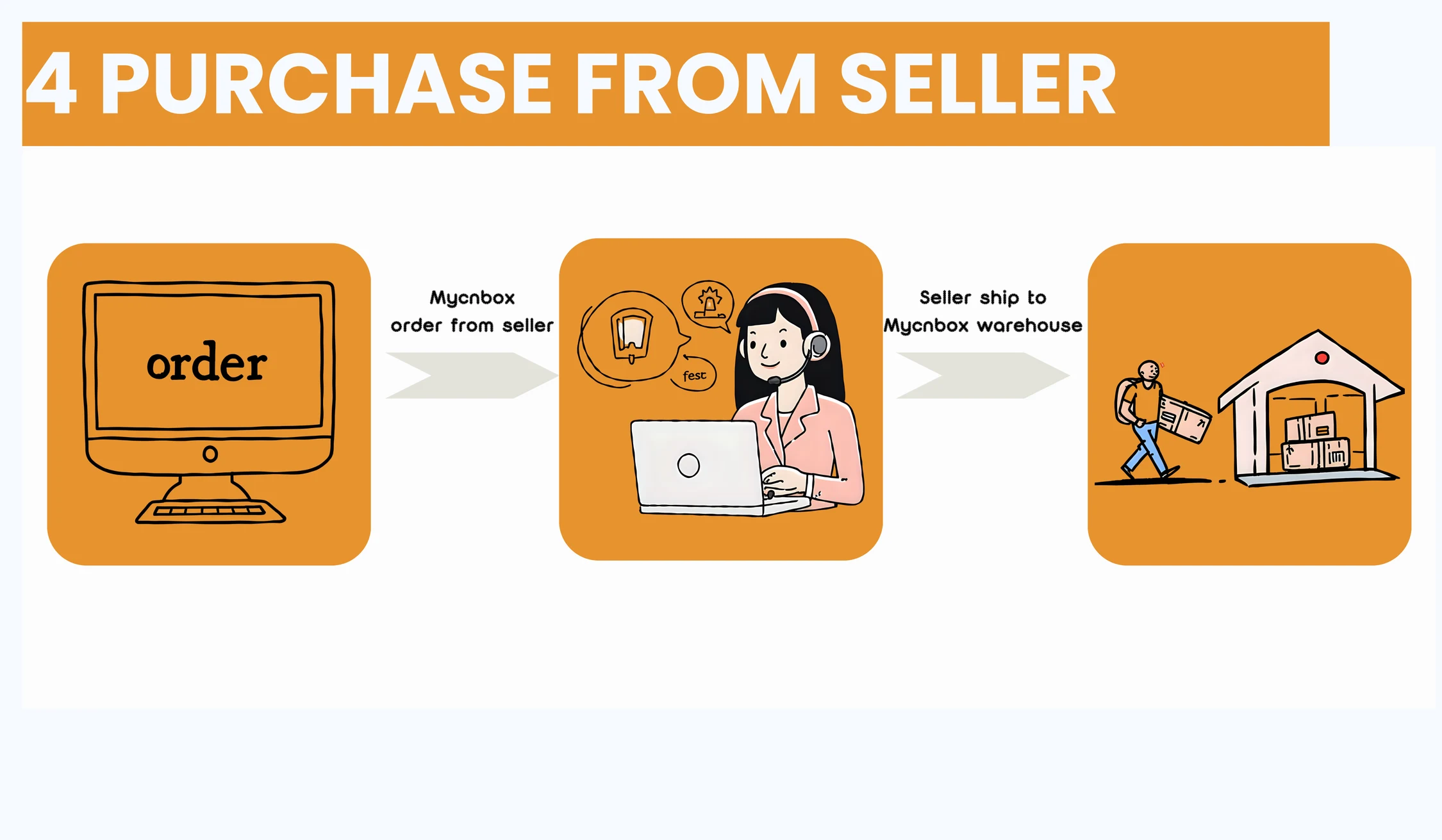
MyCNBox guide screenshot · select to enlarge Wait for the seller to ship
MyCNBox places the order with the seller. Follow the order status as the seller sends the item to the warehouse.
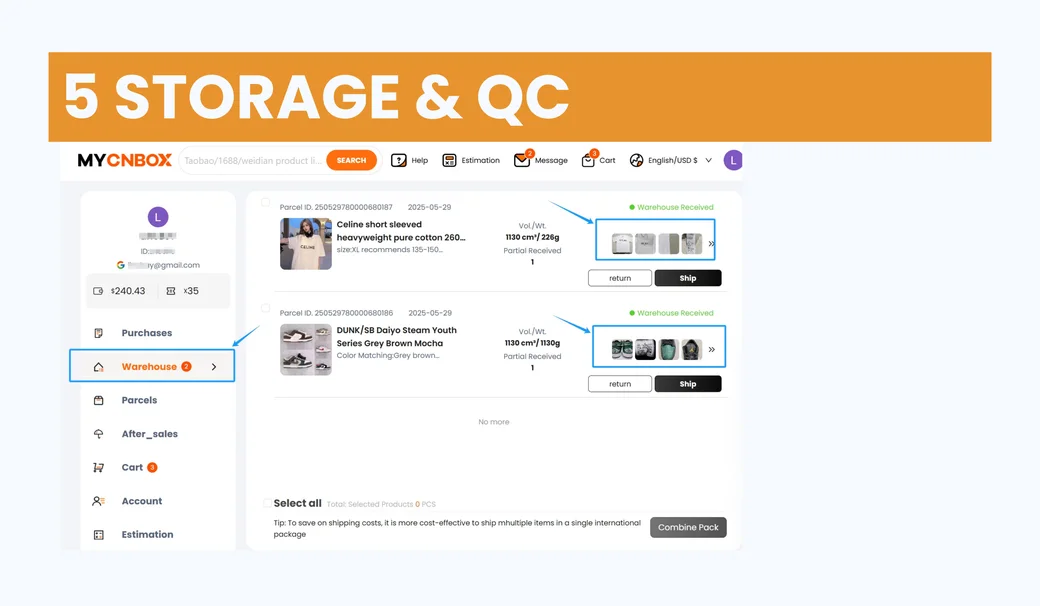
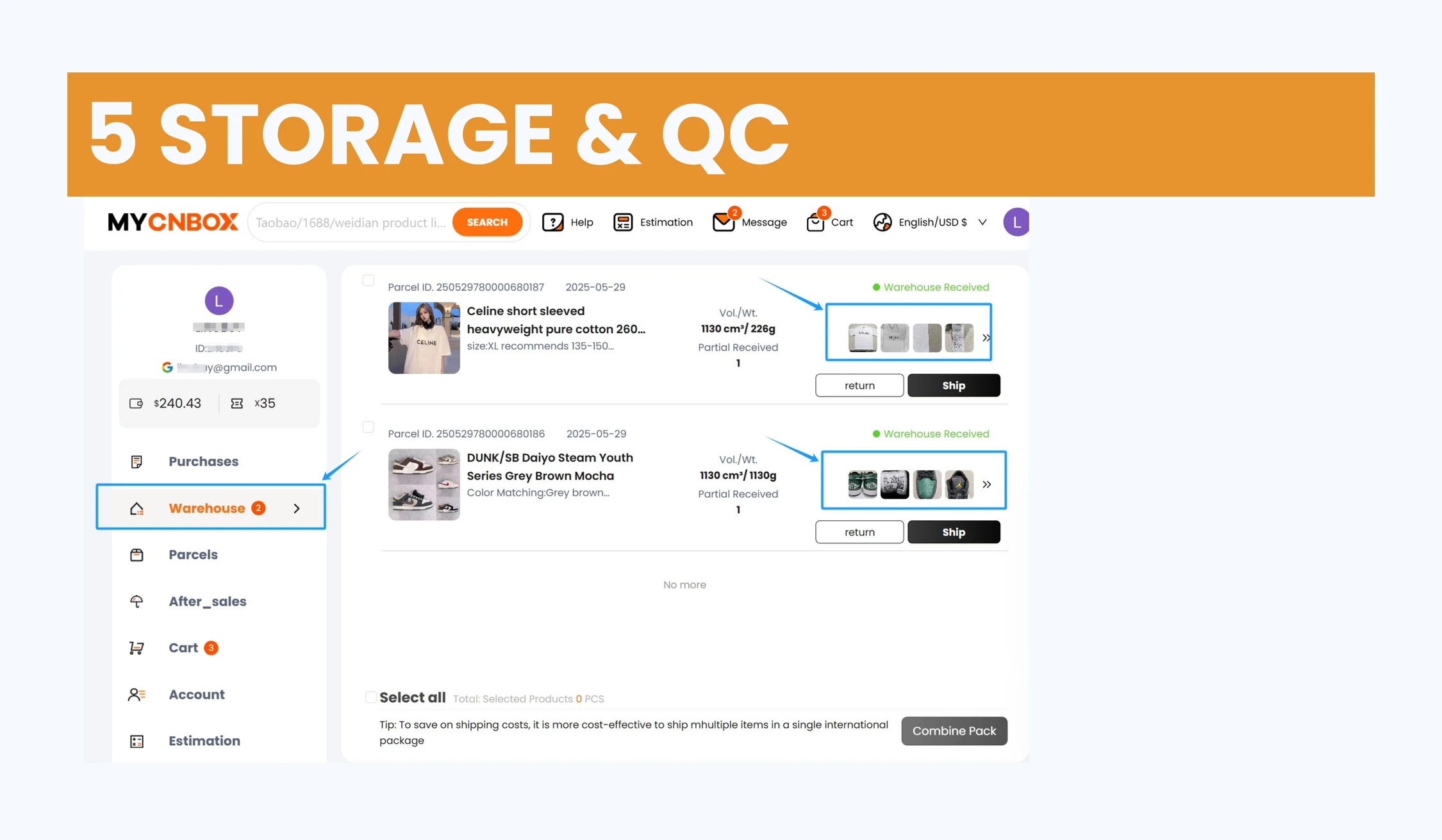
MyCNBox guide screenshot · select to enlarge Open the warehouse QC photos
Open the received item in Warehouse. Check the colour, visible condition and variant before you commit the item to a parcel. Ask for help promptly if the photos show a problem.
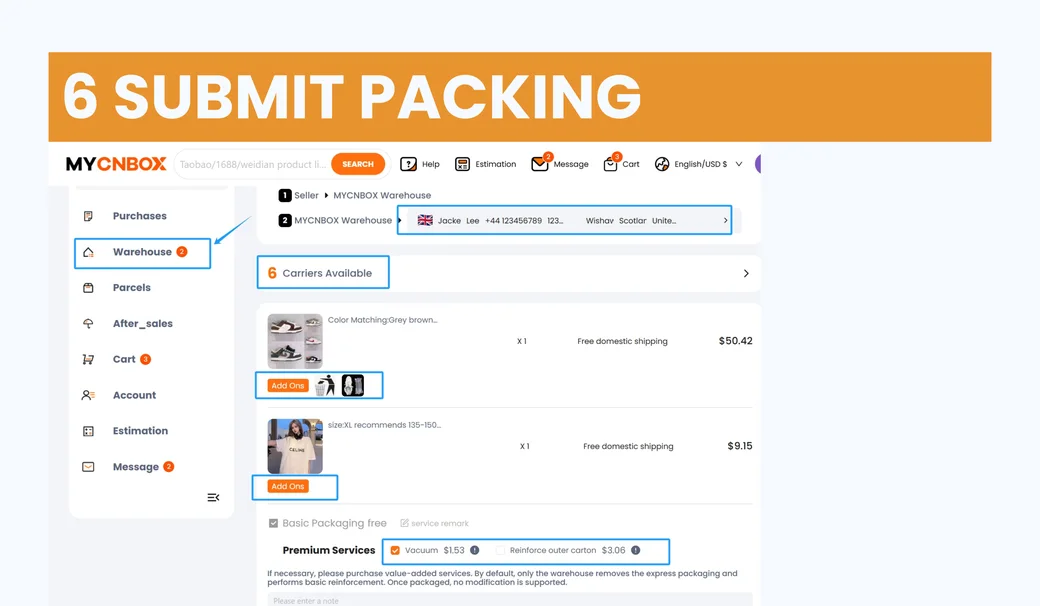
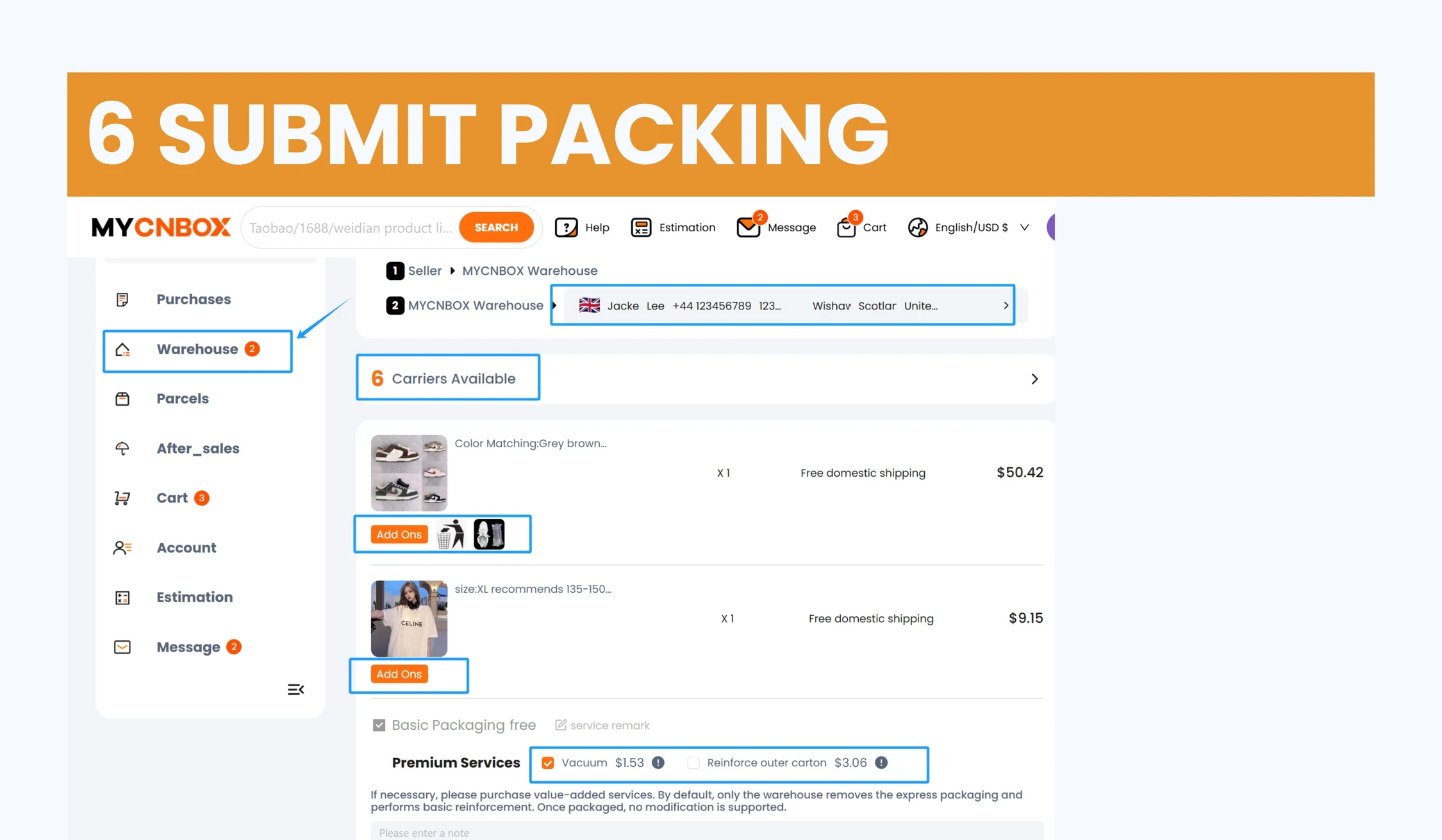
MyCNBox guide screenshot · select to enlarge Choose what to pack
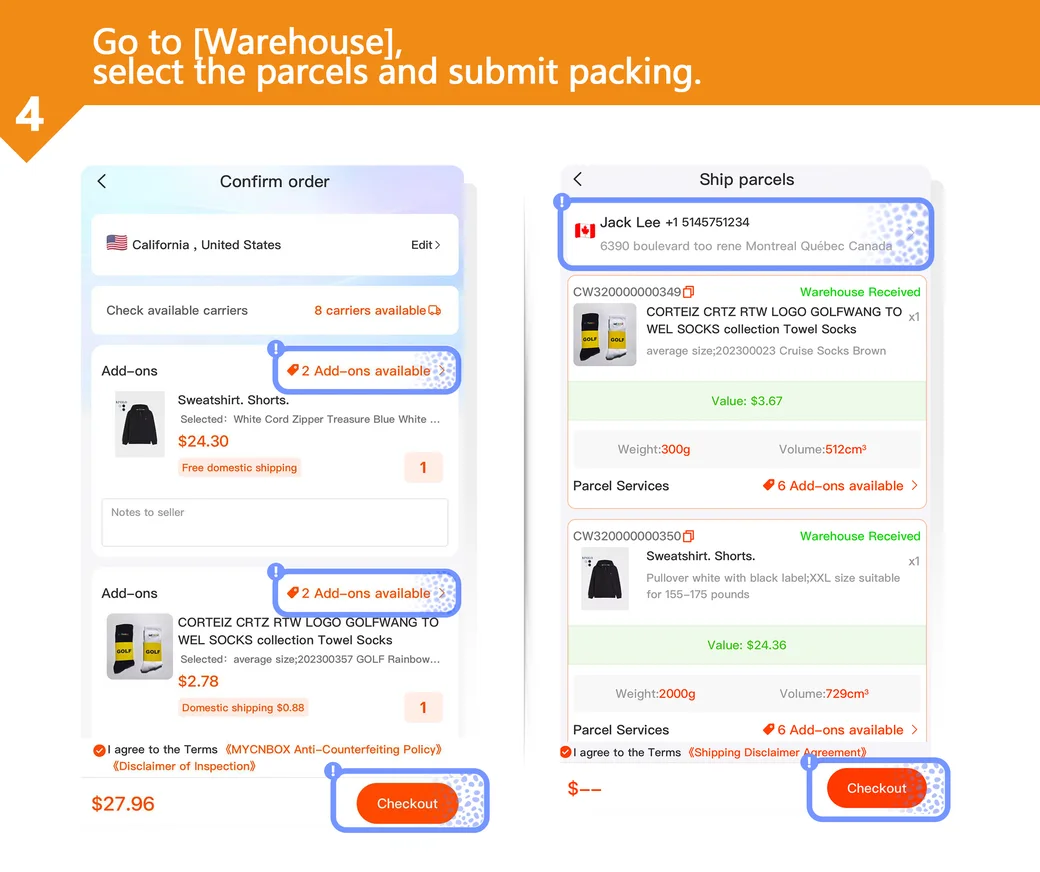
Select the warehouse items you want in the same parcel. Review packing options and double-check the overseas delivery address, postcode and recipient phone number before submitting.
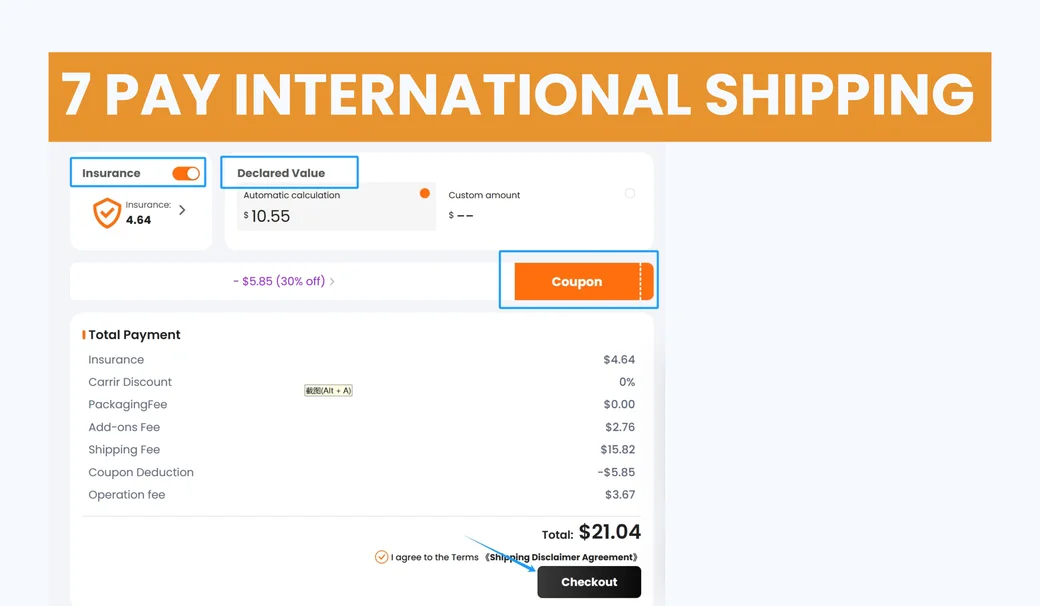
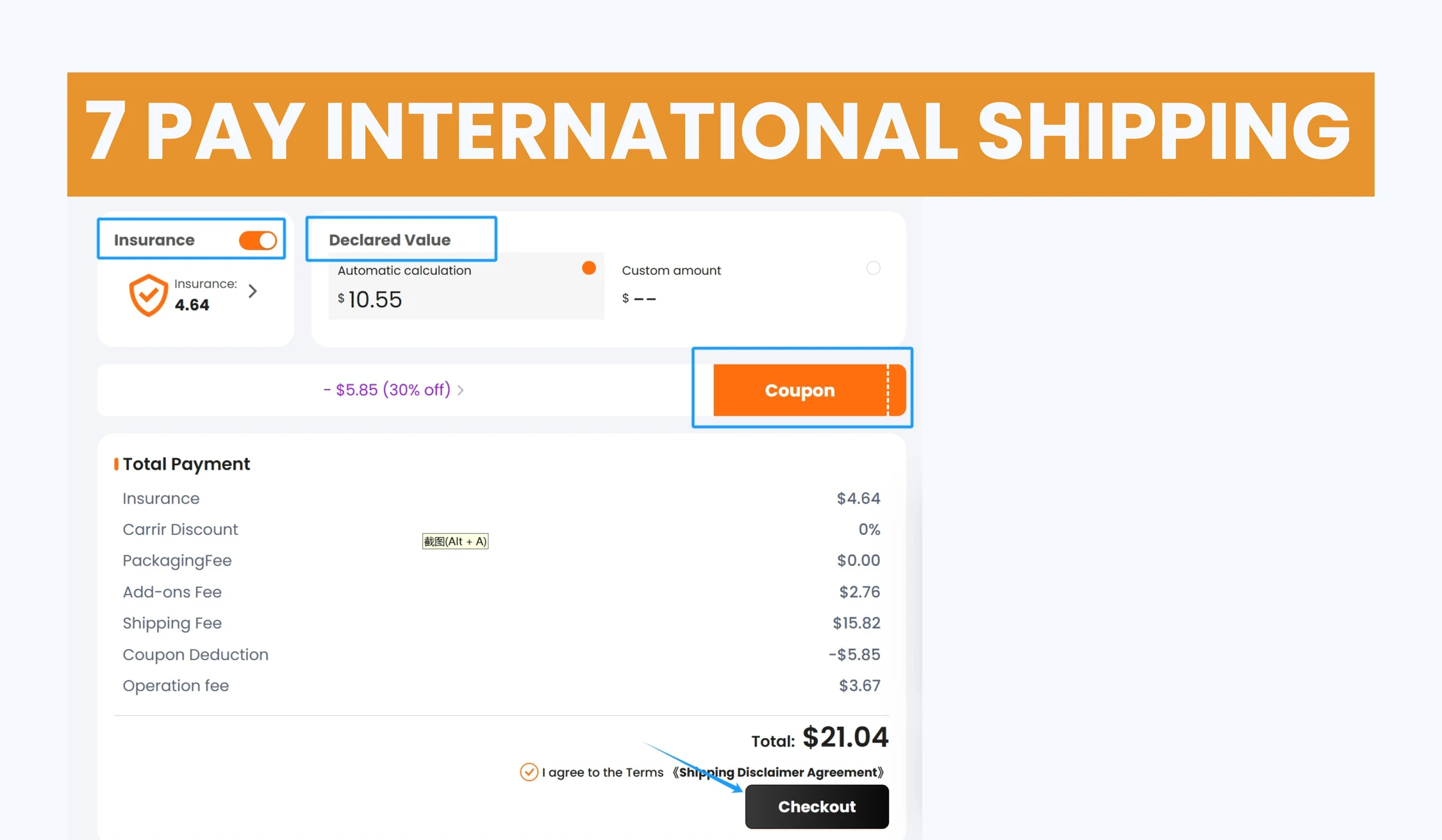
MyCNBox guide screenshot · select to enlarge Confirm the line and pay for shipping
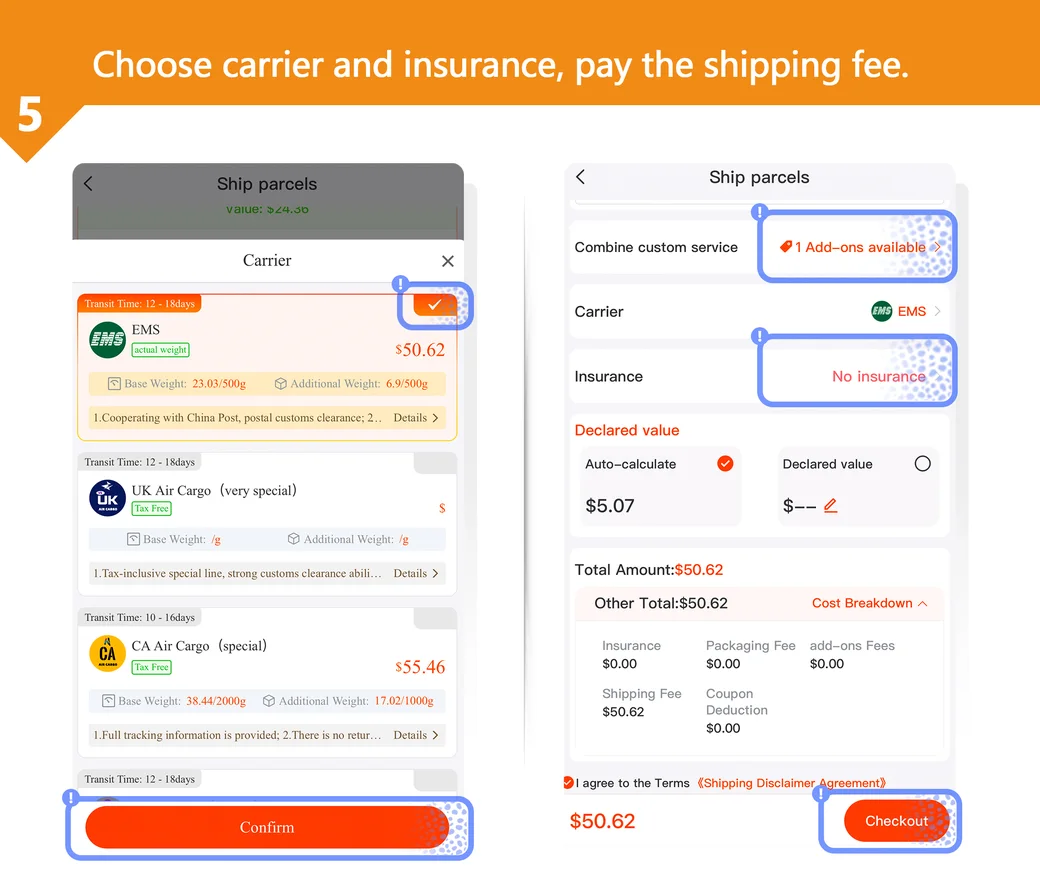
Check the route, estimated cost and any packing or insurance choices. Apply an eligible coupon if shown. MyCNBox’s guide says a lower final shipping charge is credited back to the account balance.
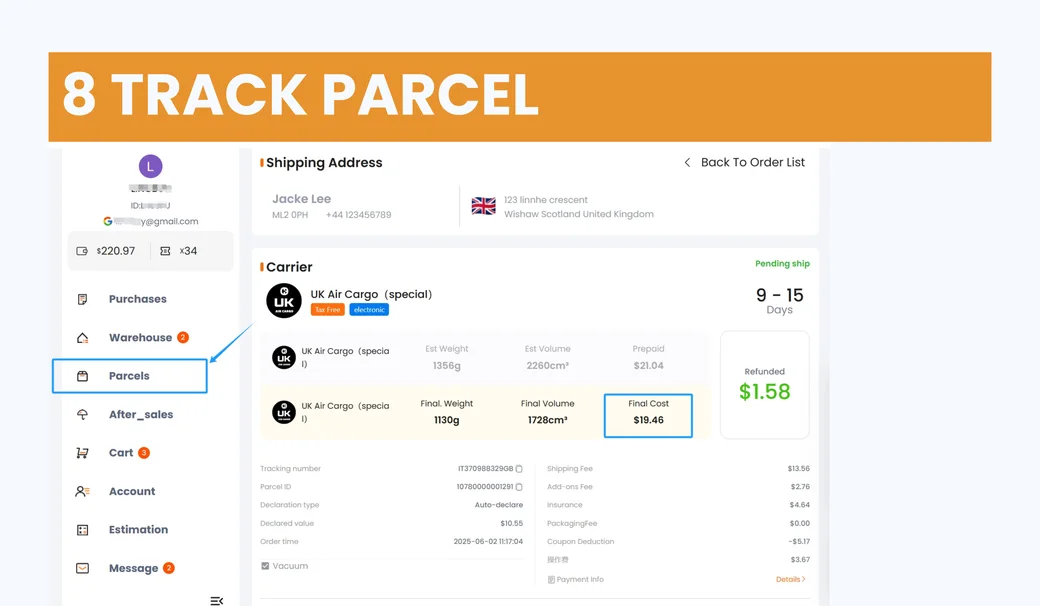
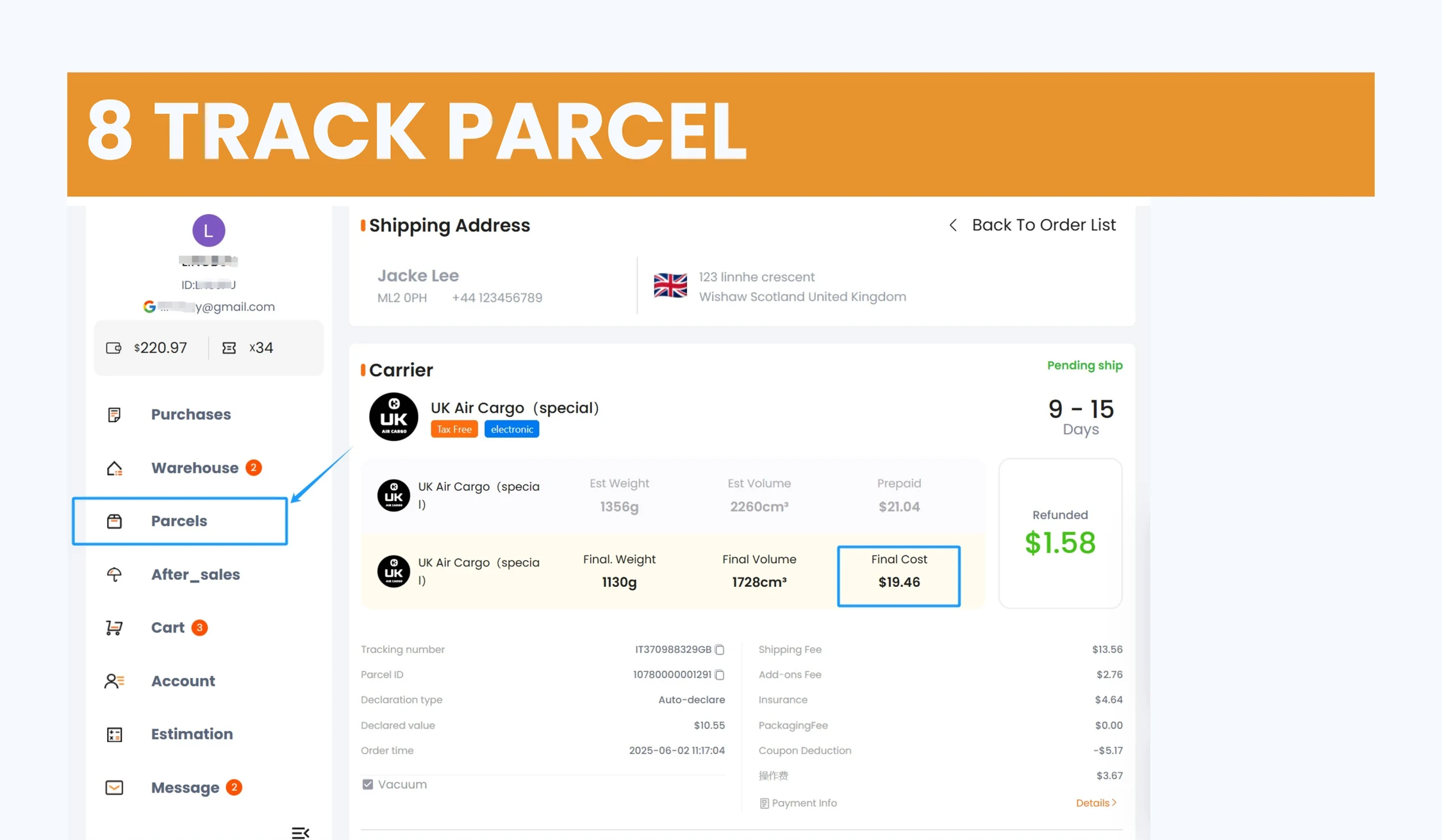
MyCNBox guide screenshot · select to enlarge Track from the Parcels page
Open the parcel record for its carrier and tracking number. Save the number and share it with the person receiving the parcel if they need to follow delivery.
MyCNBox guide screenshot · select to enlarge
Mobile guide
Five illustrated steps for the app and mobile screens. Official mobile article
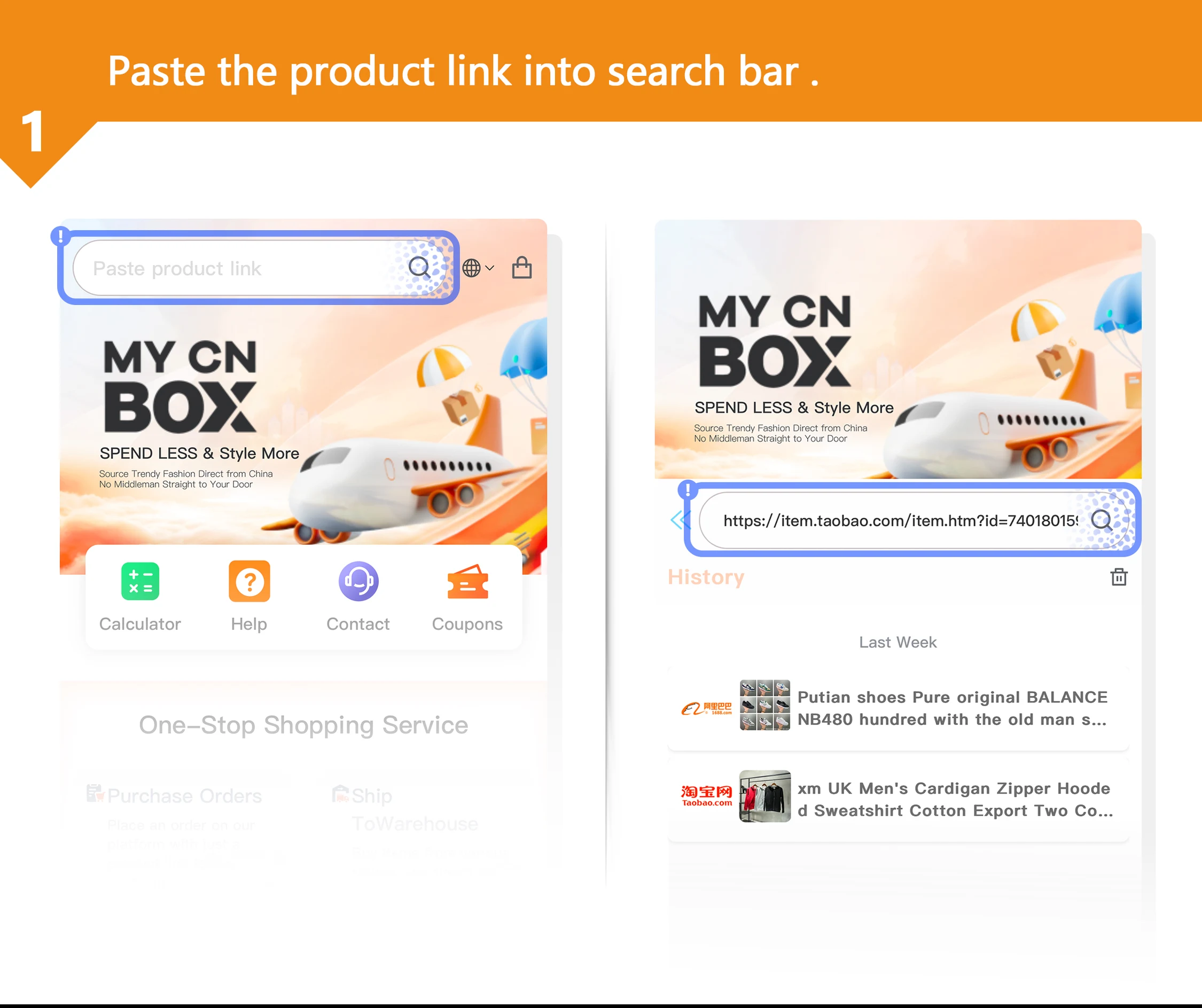
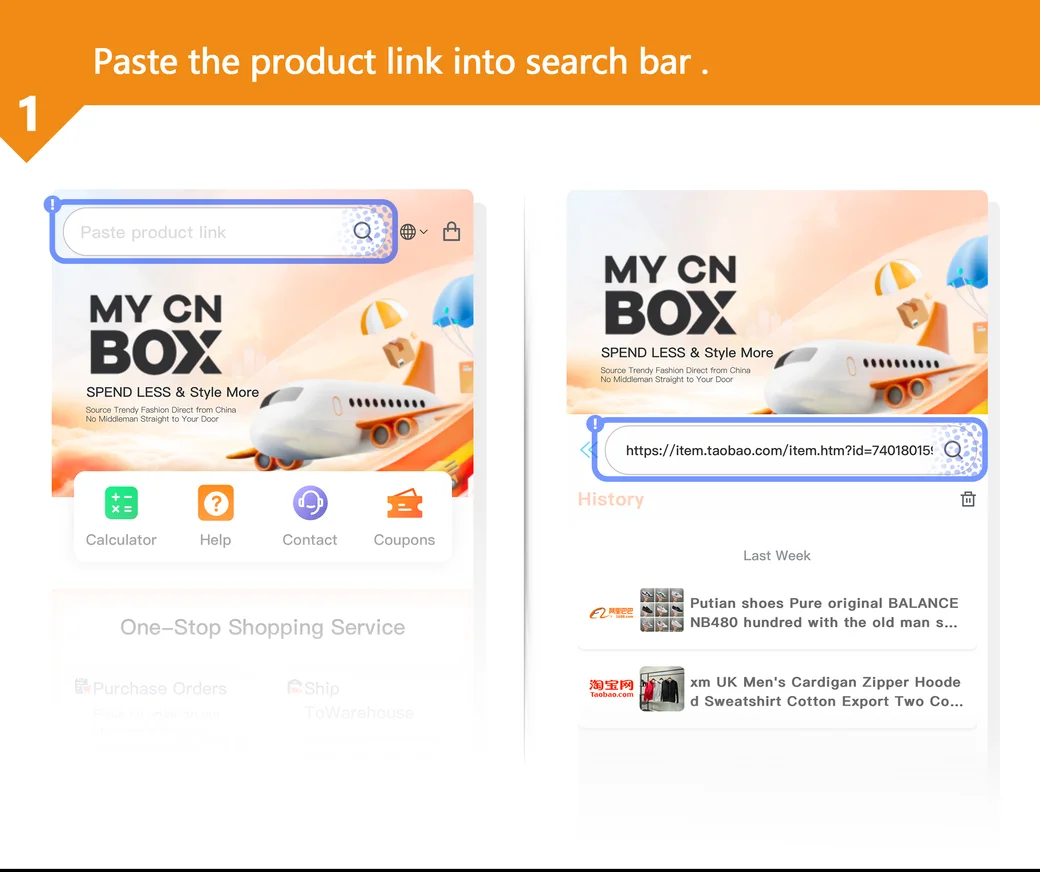
Paste a listing in the app or mobile site
Use the search bar at the top and paste the seller URL. Compare the result with the original listing before you choose options.
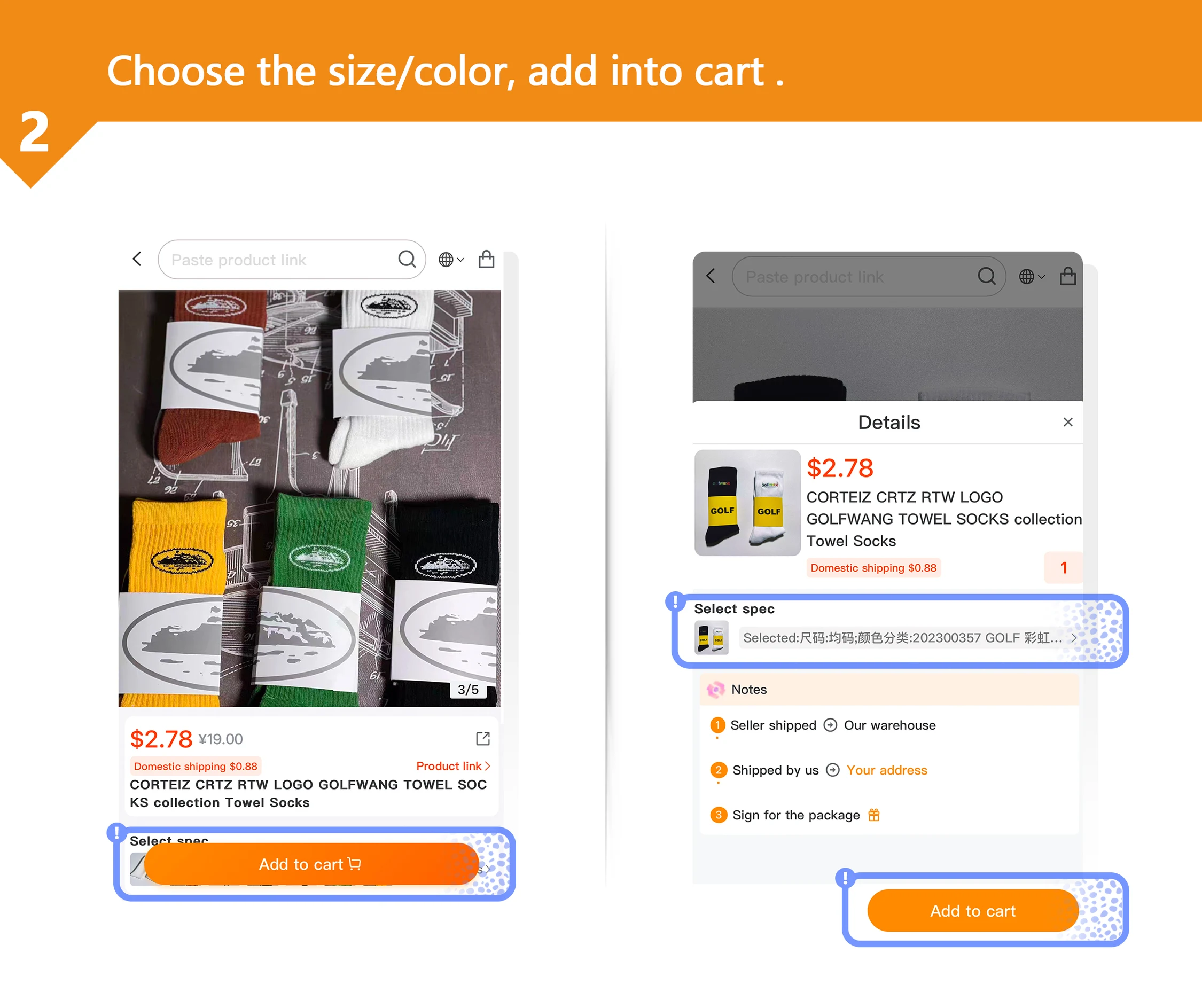
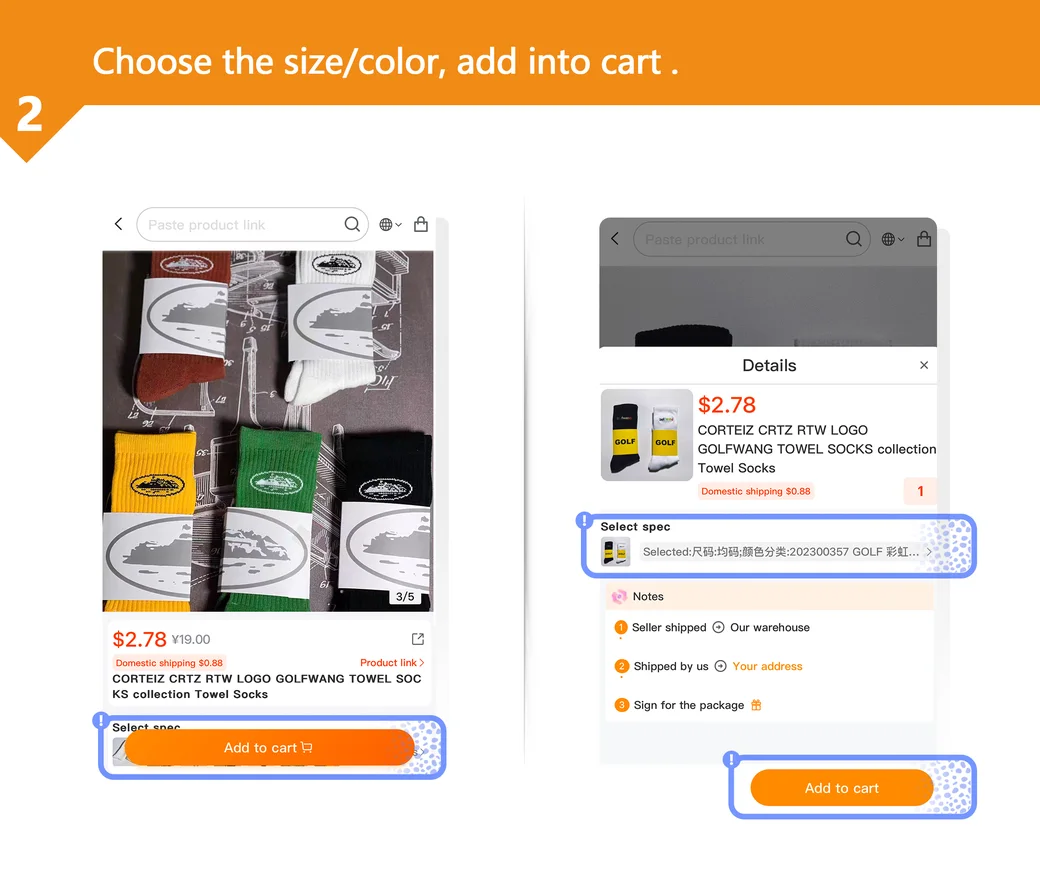
MyCNBox guide screenshot · select to enlarge Select size and colour
Tap the item’s options, confirm the variant and quantity, and add it to the cart.
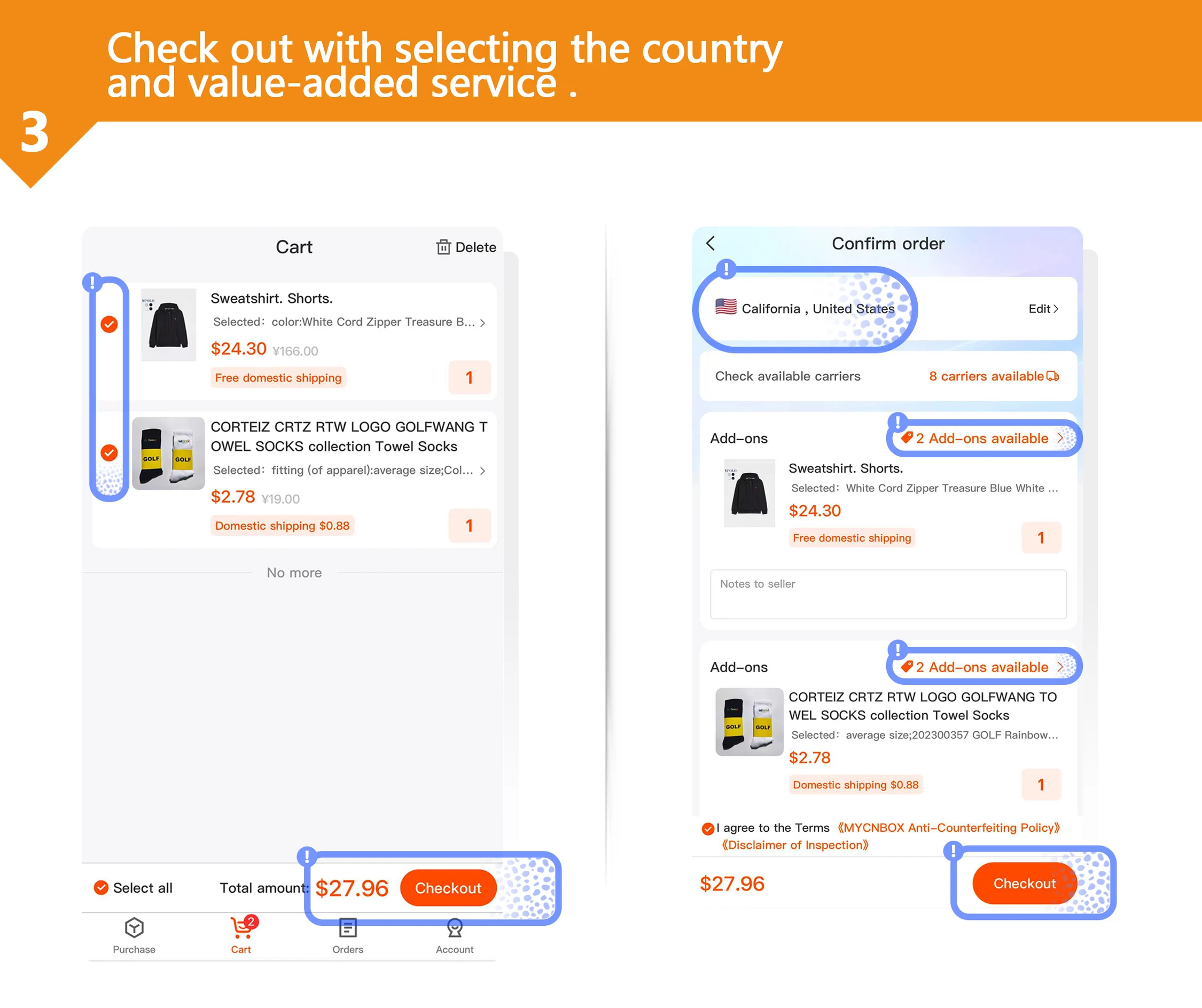
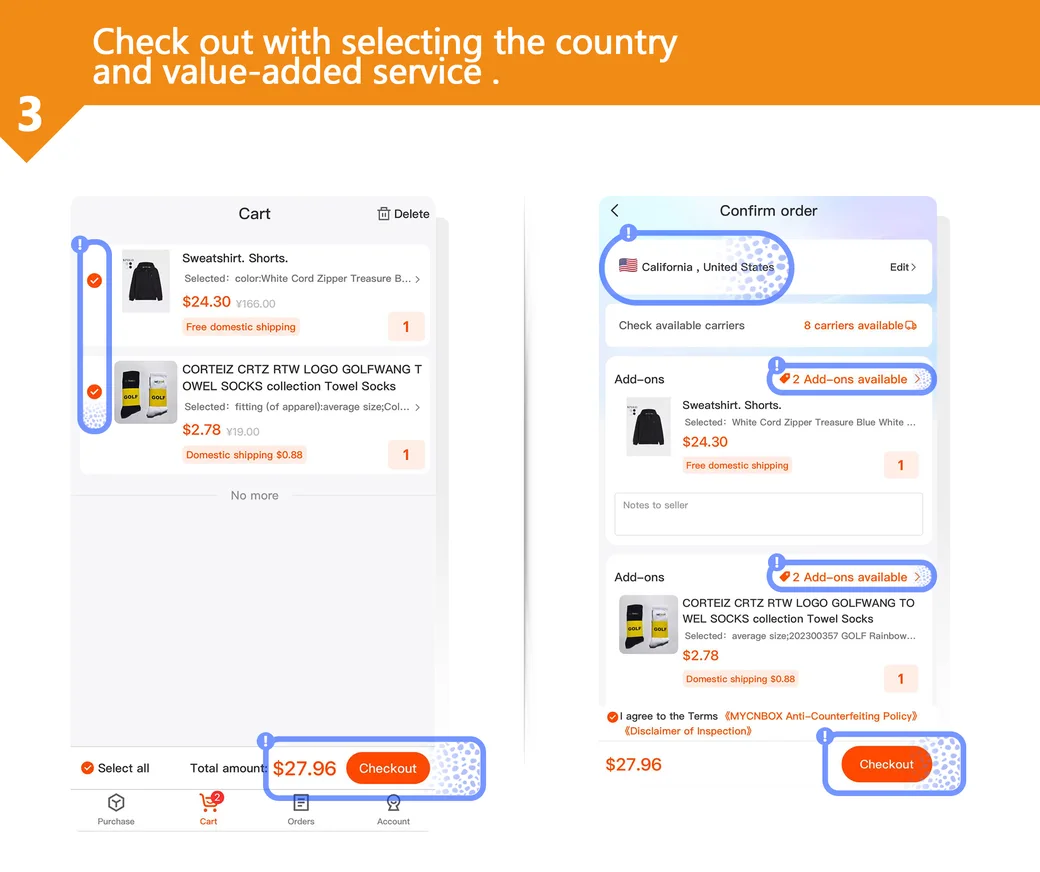
MyCNBox guide screenshot · select to enlarge Review the first checkout
Check the destination field and any optional services on the order screen. Review the item total and domestic delivery before confirming.
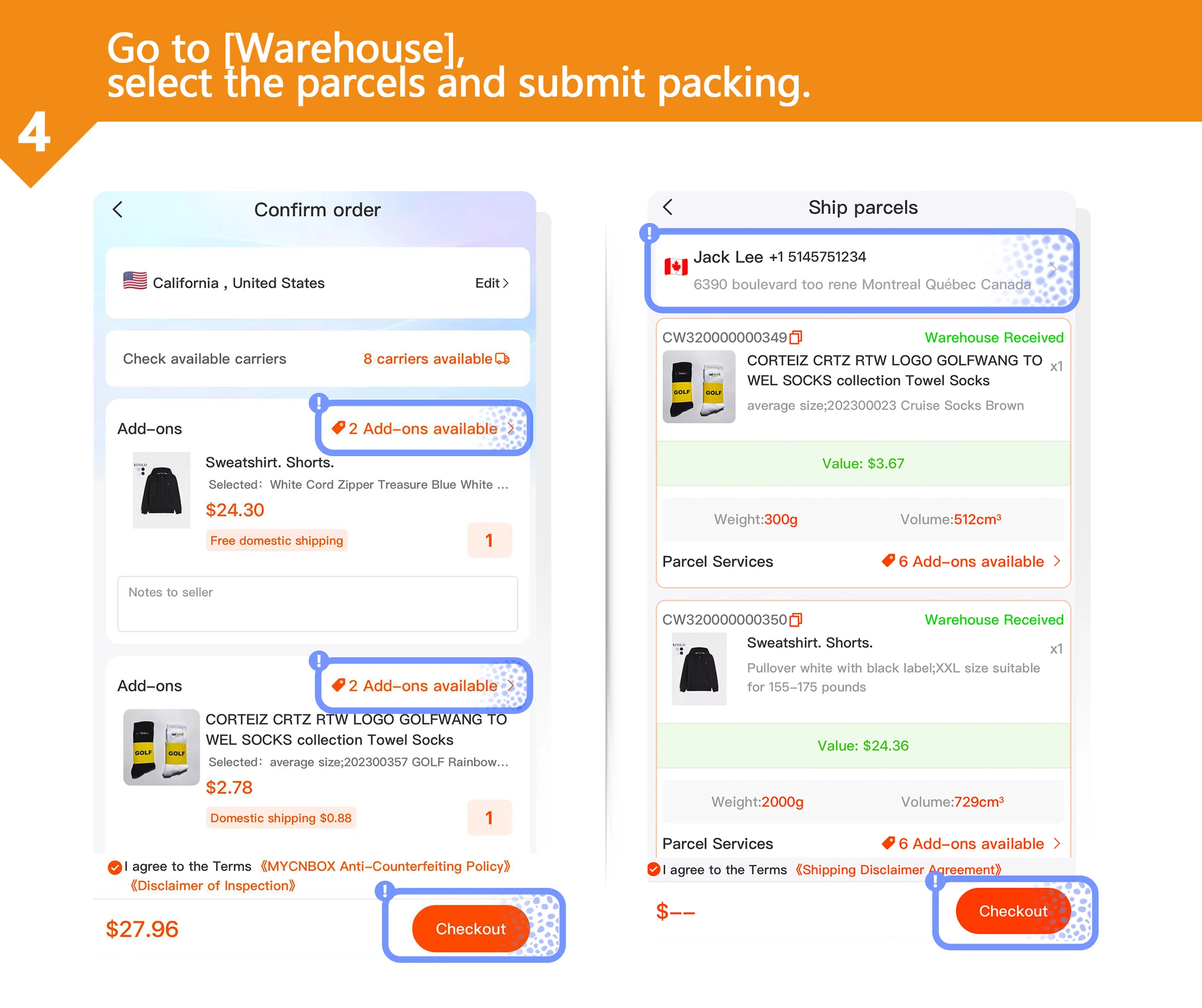
MyCNBox guide screenshot · select to enlarge Select the warehouse items
In Warehouse, open the item and check its QC photos first. Select the items to combine, then review the address and packing request.
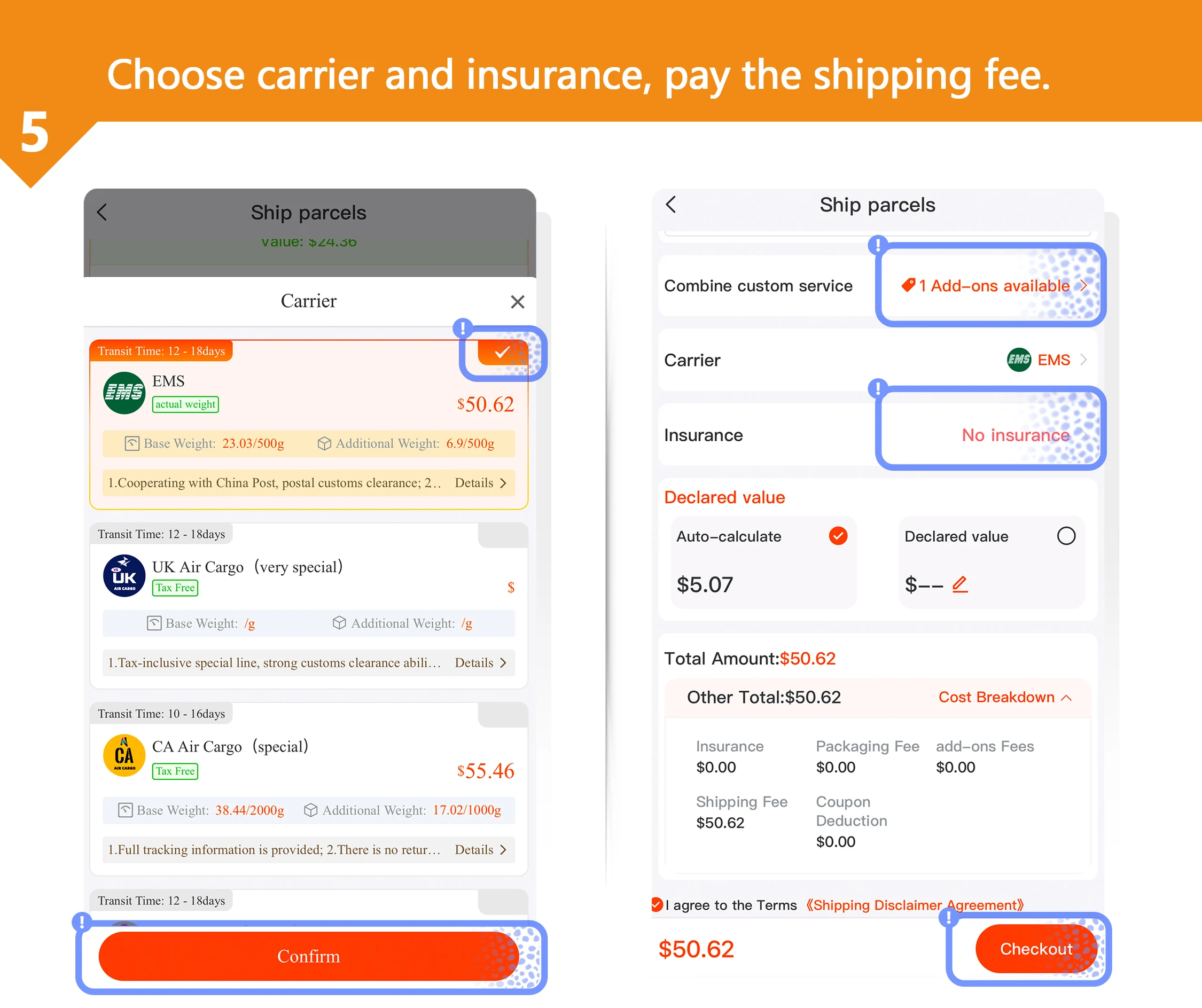
MyCNBox guide screenshot · select to enlarge Choose a carrier and pay
Compare available carriers, review any optional insurance and confirm the international shipping payment. Follow the parcel from your account after dispatch.
MyCNBox guide screenshot · select to enlarge